Table of Contents
- Introduction to Nano Banana Pro
- Step-by-Step Guide to Restore and Colourise Old Pictures
- Turning Your Restored Image into a Video
- What’s New with Nano Banana Pro?
- Tips and Tricks for Best Results
- Common Mistakes to Avoid
- Real-World Examples of Restored Photos
- Conclusion
Introduction to Nano Banana Pro
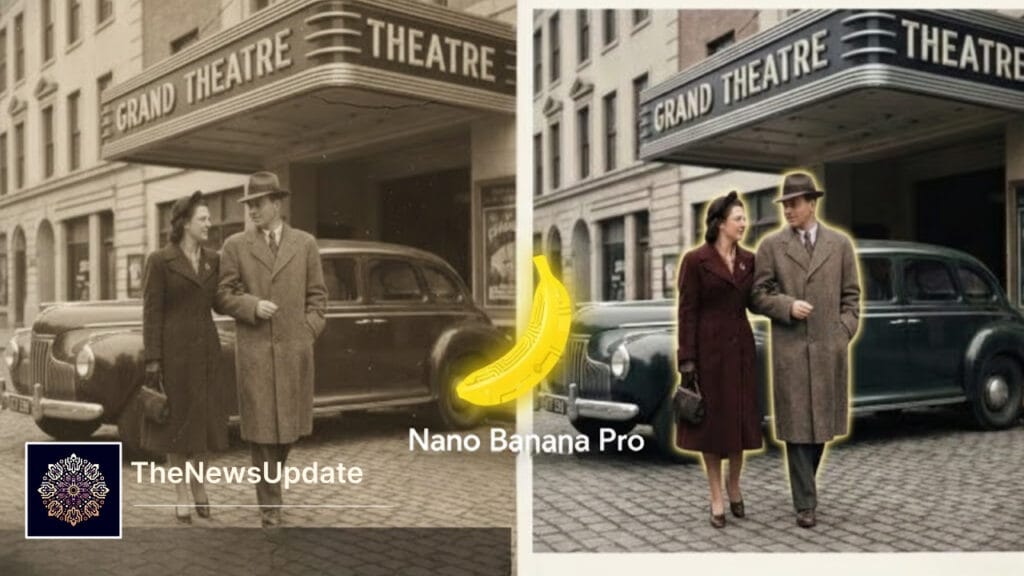
Google’s NNano Banana Pro restore old pictures has rapidly emerged as one of the most advanced AI image generation and restoration tools available today. Combining the capabilities of text-to-image generation, high-fidelity photo restoration, and intelligent editing, the model allows users to breathe new life into old photographs. Whether you are a professional photographer, historian, or hobbyist, Nano Banana Pro offers versatile solutions for enhancing old images, creating infographics, and generating animated visuals.
Unlike traditional photo editing tools, Nano Banana Pro leverages artificial intelligence to maintain the integrity of the original image while adding modern enhancements. It can accurately restore details, correct colours, and upscale images to high resolutions such as 4K, providing results that often rival professional manual restoration.
Step-by-Step Guide to Restore and Colourise Old Pictures
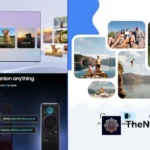
Restoring old photographs with Nano Banana Pro is intuitive, yet following a systematic approach ensures the best results. Here’s a detailed step-by-step guide:
- Sign in to Gemini: Open the Gemini app or website and log in. Users with paid accounts have access to premium features like higher-resolution output and iterative editing.
- Choose Generate Image: Navigate to the Generate Image option in the menu.
- Input a Descriptive Prompt: Type a prompt like “Faithfully restore this image with high fidelity to modern photograph quality, in full color, upscale to 4K.” The AI uses this instruction to enhance and colourise the image accurately.
- Review and Adjust: Once the AI generates the image, examine it closely. Nano Banana Pro allows you to perform iterative edits to refine colour tones, contrast, and clarity. This ensures that even delicate facial features and background elements are restored authentically.
- Save the Restored Image: After final adjustments, download the image in your preferred format. PNG or TIFF is recommended for maintaining maximum quality.
Following these steps, even severely faded black-and-white photos can be transformed into vibrant, modern-looking images that retain the essence and historical accuracy of the originals Nano Banana Pro restore old pictures.
Turning Your Restored Image into a Video
One of Nano Banana Pro’s unique features is the ability to animate your restored images. Creating a video from a single photo can bring historical figures, family members, or old memories to life.

- Access Tools > Create Videos in Gemini.
- Upload your restored photo and select animation effects. These can include subtle facial expressions, eye movements, or environmental motions.
- Preview the video and fine-tune effects. Adjust speed, looping, and transitions to achieve the desired impact.
- Note: Gemini’s video generator (Veo 3.1) is a premium feature. Free users may use Grok’s Imagine feature, which generates videos with slightly lower fidelity but offers creative freedom.
Animating images not only enhances visual storytelling but also allows users to create engaging content for social media, documentaries, or personal archives.
What’s New with Nano Banana Pro?
The latest Nano Banana Pro version is powered by the Gemini 3 Pro engine and features Google Search integration. This allows the AI to:
- Fetch and compile data from the web.
- Create accurate infographics and educational content automatically.
- Generate high-resolution images without detailed prompts.
For instance, you can request an infographic on a historical figure, a recipe, or even market trends. Nano Banana Pro processes relevant information and presents it in visually appealing formats suitable for presentations, social media, or educational purposes.
Tips and Tricks for Best Results
- Always use high-resolution originals. The AI performs better when it has more data to work with.
- Provide descriptive prompts specifying the level of colourisation, quality, and resolution.
- Use iterative edits to fine-tune small details like facial features, textures, and backgrounds.
- Leverage Gemini for video creation if you want professional-level animation.
- Combine Nano Banana Pro with Grok to explore creative variations or stylized outputs.
Common Mistakes to Avoid
- Using low-resolution or heavily damaged images, which may result in blurred outputs.
- Providing vague prompts, leading to inaccurate colourisation.
- Skipping iterative edits, which can reduce the fidelity of fine details.
- Ignoring AI-generated suggestions for enhancing shadows, contrast, or sharpness.
Real-World Examples of Restored Photos
Many users have successfully restored historical images using Nano Banana Pro. For example:
- Old family portraits from black-and-white negatives restored and colourised for modern displays.
- Historical images of leaders and cultural events brought back to life for documentaries or exhibitions.
- Product mockups and old advertising photos recreated for marketing campaigns.
These examples demonstrate Nano Banana Pro’s versatility and power, making it a must-have tool for photographers, historians, educators, and content creators.
Conclusion
Google’s Nano Banana Pro provides a comprehensive solution for restoring and colourising old pictures, animating them, and creating professional-quality infographics. Its AI-driven approach ensures high fidelity, vibrant colours, and stunning visual results. By combining intuitive prompts with iterative editing, anyone can transform historical photographs into modern, lifelike images. Nano Banana Pro is not just an AI tool—it’s a bridge connecting the past with the present, preserving memories and historical value for future generations.
यह भी पढ़े:
 Samsung Bixby Perplexity AI Integration: 7 Key Signs Samsung Is Reinventing Its Voice Assistant
Related Reads
By The News Update— Updated 27 November 2025